
How to create a product with Marka
This guide walks through how product selection and order setup work inside the Marka dashboard, from your first login to reserving stock for a customer.
 Marka team1 min read
1Open your Overview Dashboard
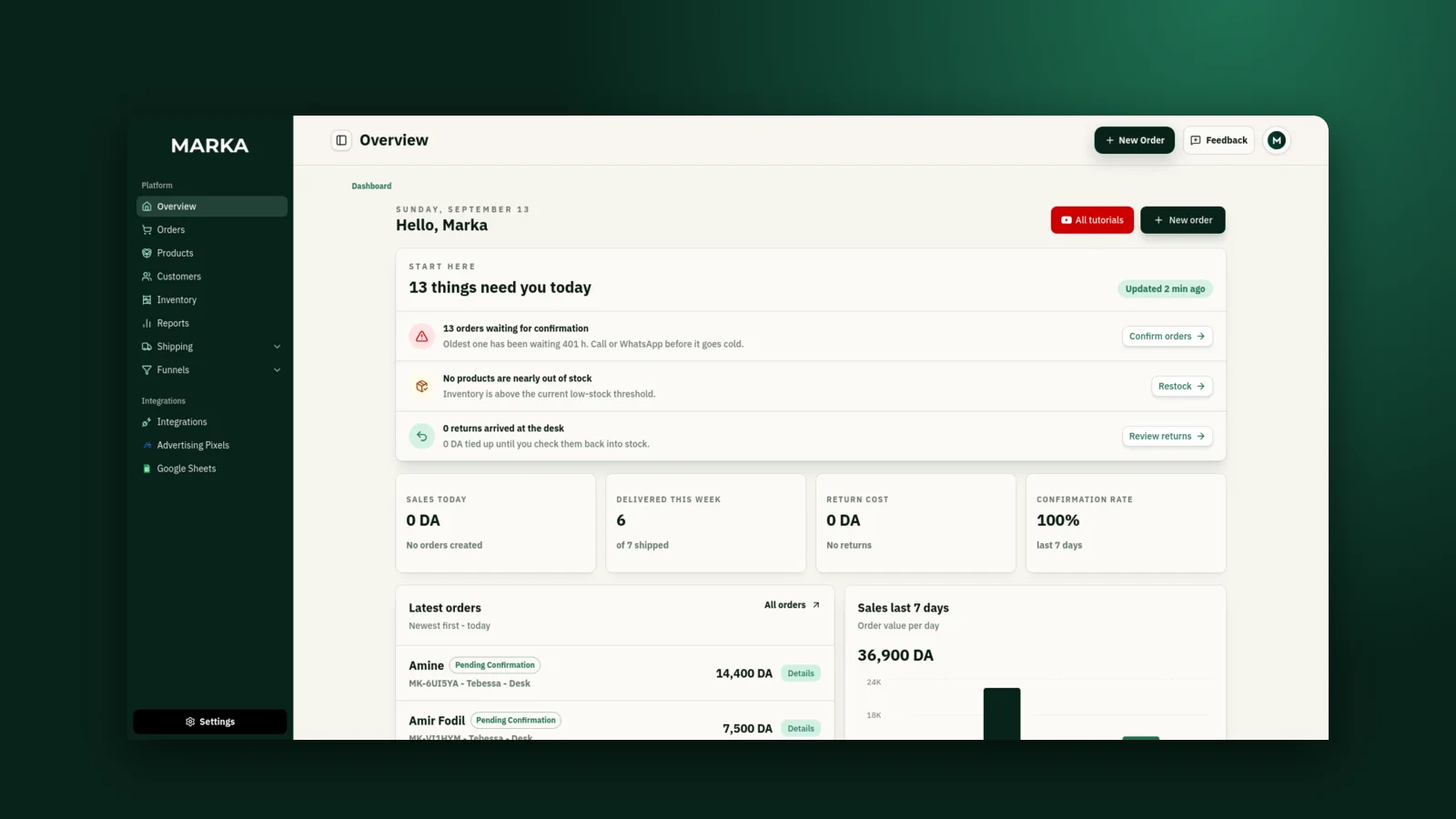
When you log into Marka, you land on the Overview Dashboard, your central control room for daily operations.
Pending alerts sit at the top: orders awaiting phone or WhatsApp confirmation, low-stock warnings, and returned packages. Key metrics sit just below: daily sales in DA, weekly shipped orders, return costs, and your 7-day confirmation rate, all at a glance.
2Open the Create order panel
In the top-right of the dashboard, click + New Order.
A Create order panel slides out from the right side of the screen.
3Enter the customer's delivery details
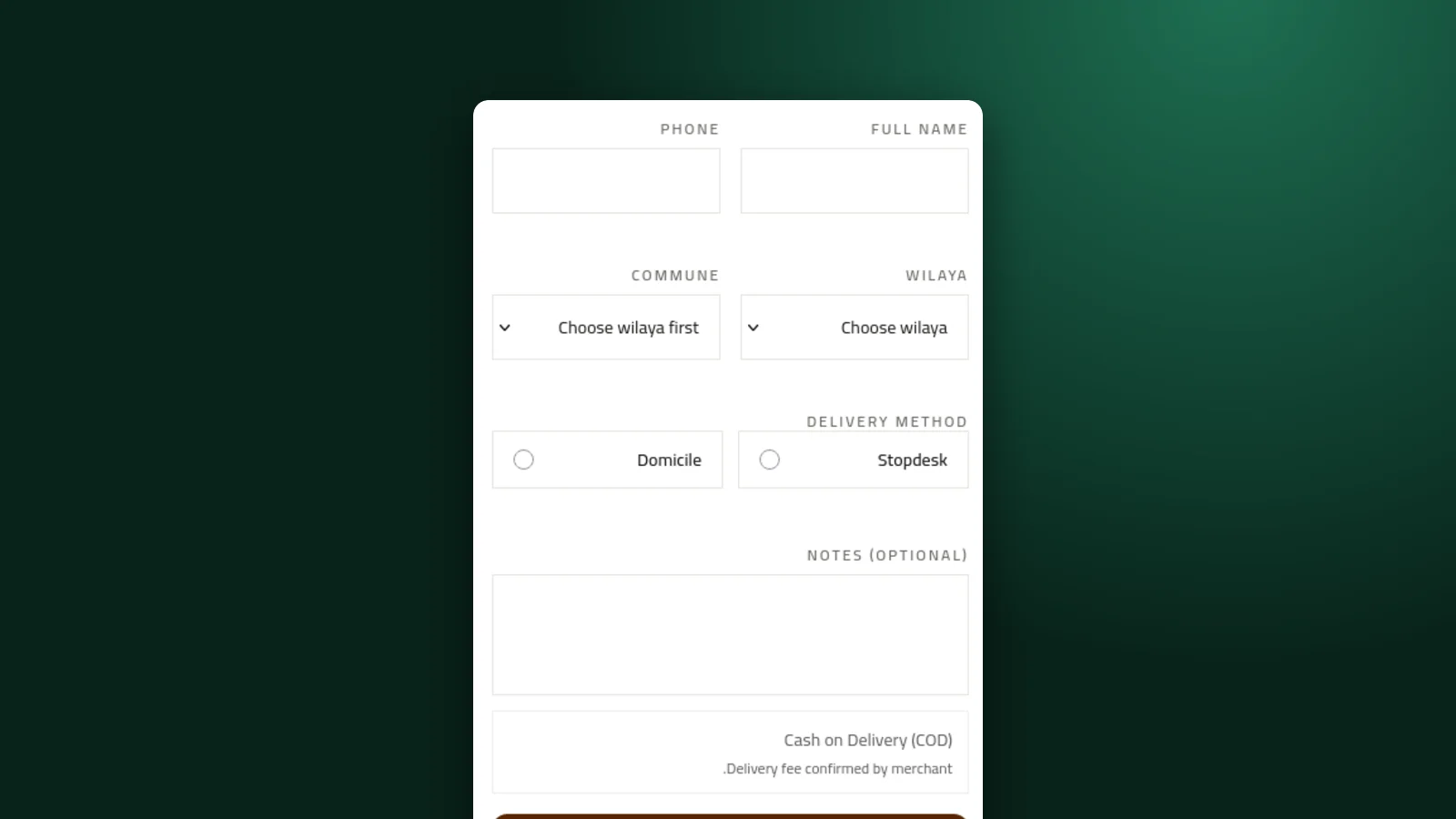
Before assigning products, fill in where the order is going: the customer's name and phone number, their wilaya and commune, the street or neighbourhood details, and the delivery method: home delivery or a stop desk.
4Add the product and its variant
In the Products section, search and select the item from your inventory, then set the quantity.
Select the specific variant: size, colour, or SKU. Marka shows the price in DA and updates availability in real time from your stock levels.
5Reserve stock and confirm
Check that no validation warnings remain, such as an unselected variant or a missing commune.
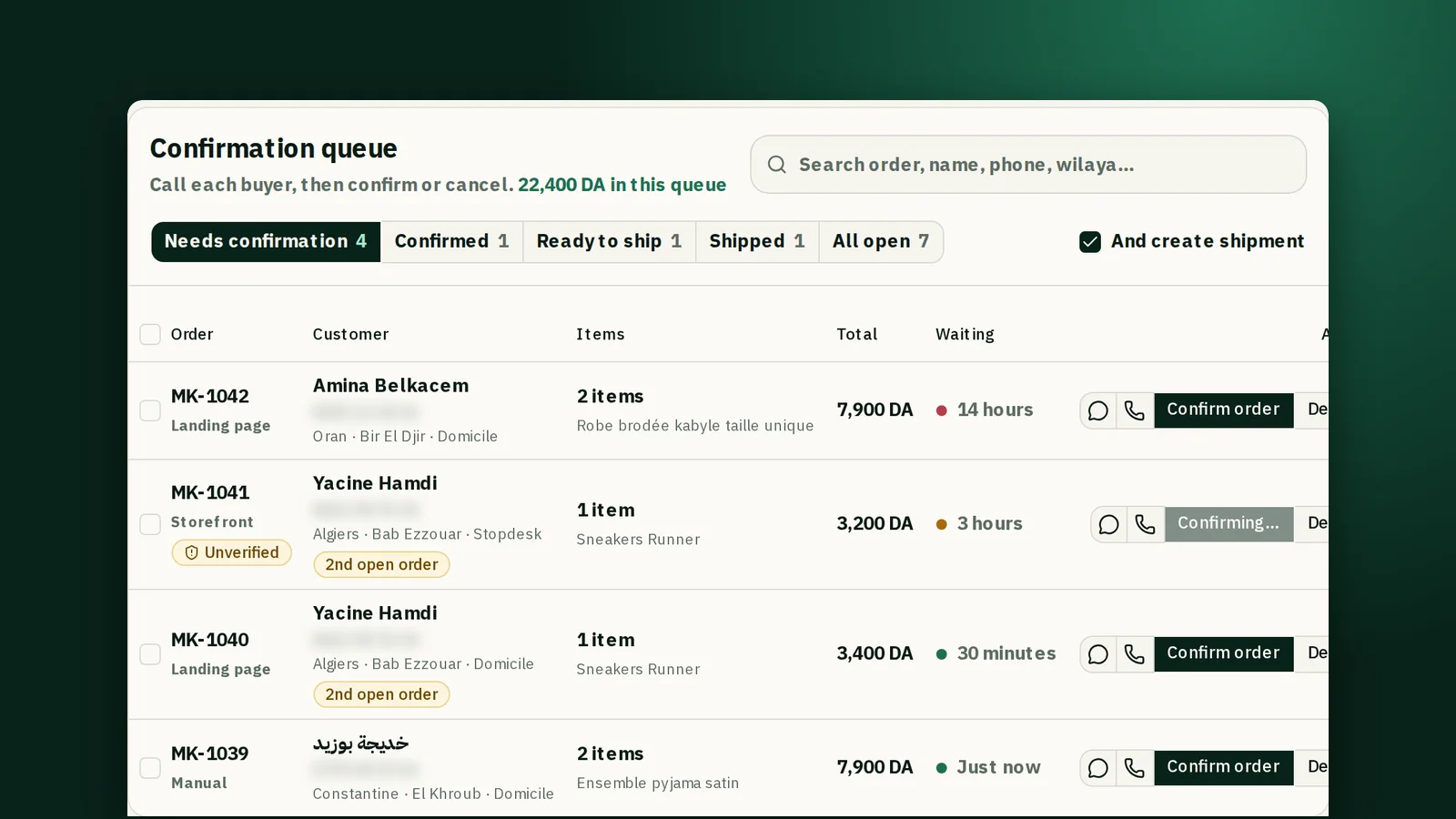
Confirm the order to reserve stock and send it to your confirmation queue.
Keep reading

Ready to start?
Create your store, add your products, and take your first order today.
Start 7 days free