
How to export your orders to Google Sheets
Sometimes a spreadsheet is the easiest way to share orders with a partner, an accountant, or a confirmation team. Marka creates the Google Sheet for you, with the orders and columns you choose.
 Marka team1 min read
1Connect Google Drive
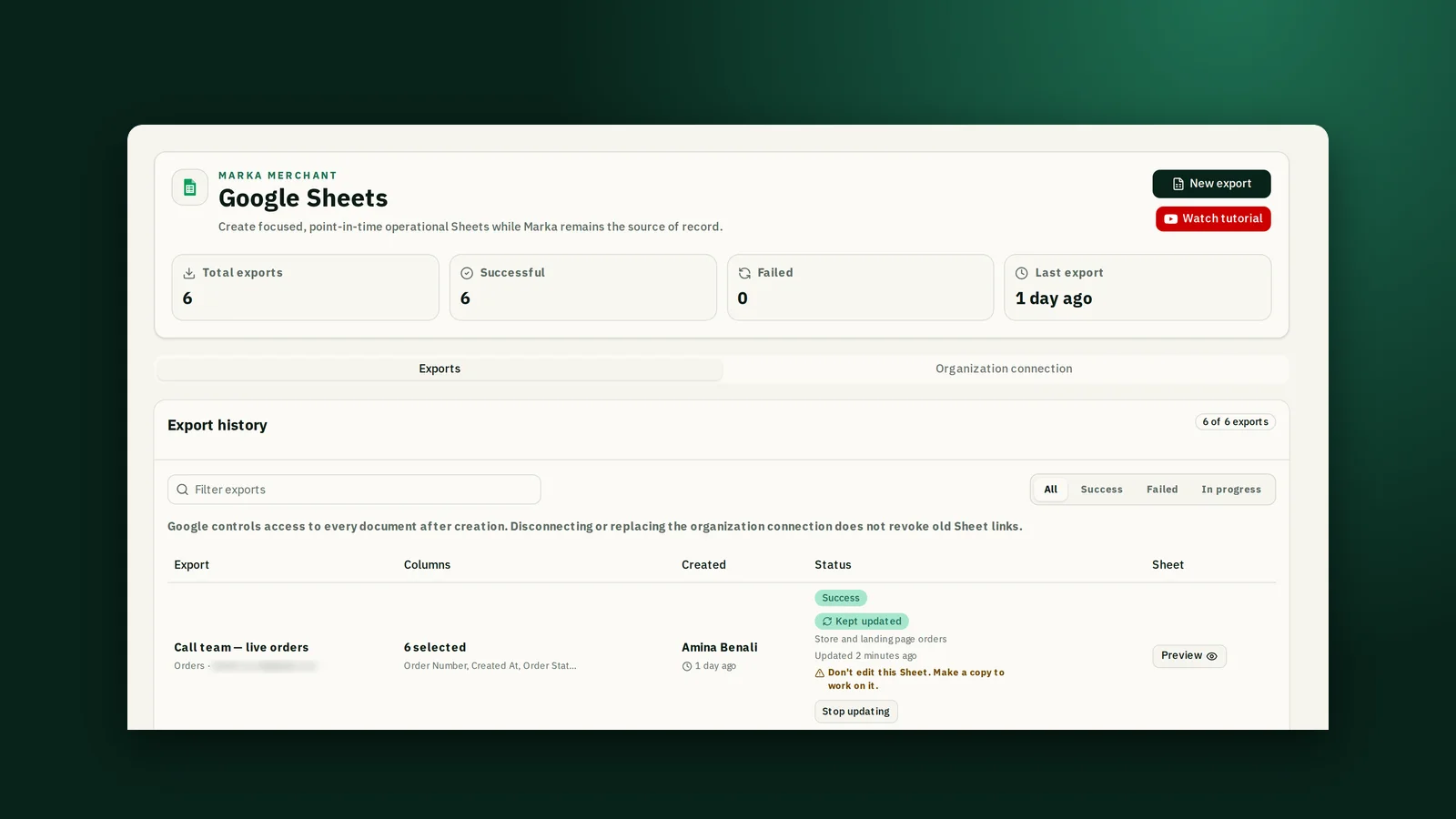
Open Integrations, then Google Sheets, and in the Organization connection tab click Connect. Only the owner can do this. Your exports go into a Marka Exports folder in that Drive account.
2Name the Sheet and pick the orders
From Orders, click Export (or New export on the Google Sheets page). Name the Sheet, choose a date range, and tick the order statuses you want.
If you need fewer rows, filter by delivery method, courier, or wilaya.
3Choose the columns
Tick only the columns the reader needs. A courier partner needs the address and phone; an accountant needs totals and dates.
4Decide whether it stays updated
Left unticked, the Sheet is a snapshot of your orders at that moment and never changes. Tick Keep this Sheet updated and Marka adds new orders and updates a row when its order changes. You can only choose this when you create the Sheet, and live updates need the Plus plan.
Do not edit a Sheet that Marka keeps updated: sorting or deleting rows can stop the updates. Make a copy in Google Sheets and work in the copy.
5Open it from the history
The Sheet usually takes a few seconds. The export history lists every Sheet you made, its status, and a link to open it.
Keep reading

Ready to start?
Create your store, add your products, and take your first order today.
Start 7 days free