
How to block fake orders with Cloudflare Turnstile
Fake orders cost you calls, stock you reserve for nothing, and sometimes a return fee. Cloudflare Turnstile checks each order placed on your store and landing pages, and Marka marks the ones it could not verify.
 Marka team1 min read
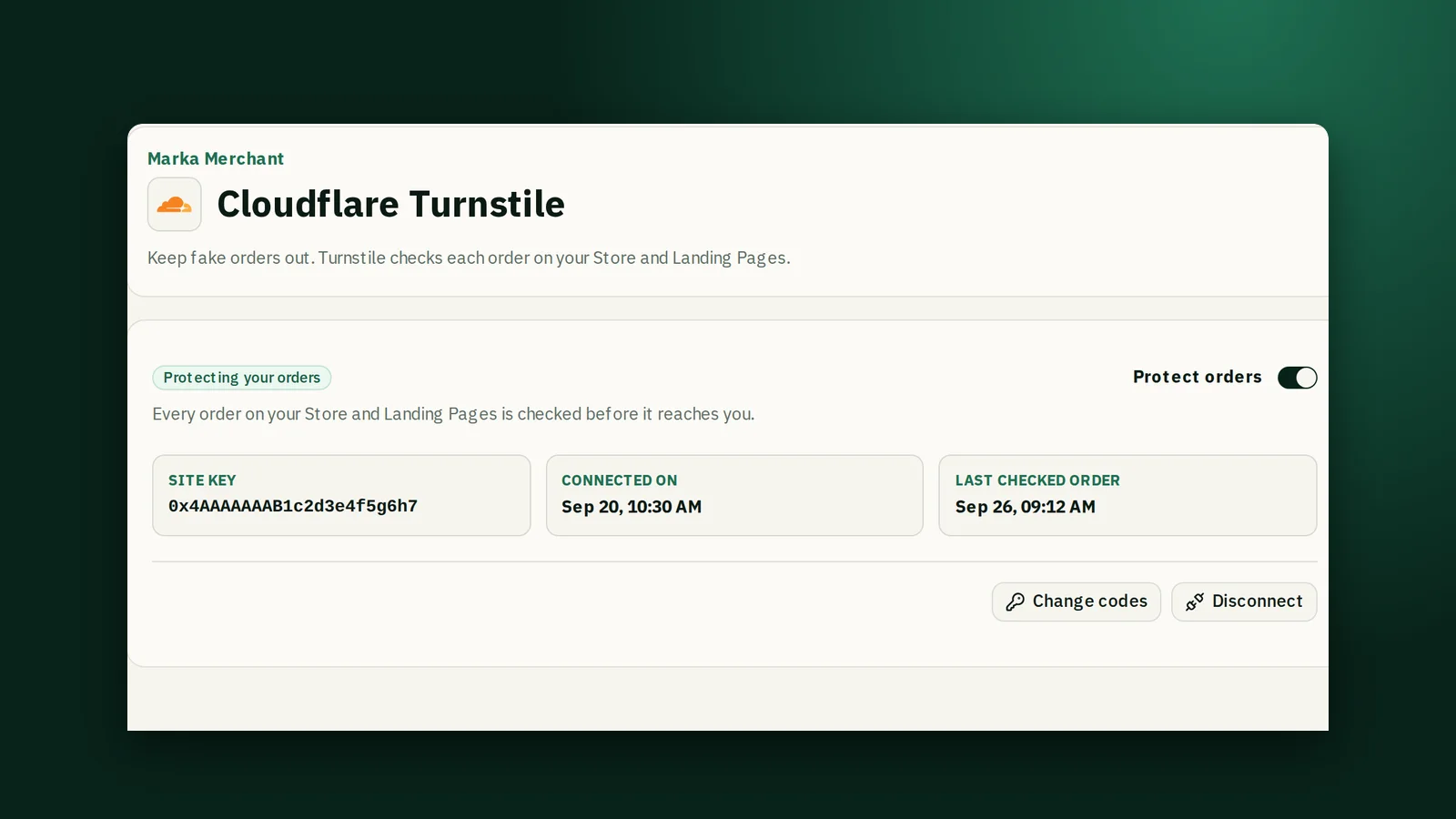
Setup happens in your own free Cloudflare account and takes a few minutes.
1Add Turnstile in Marka
Open Integrations, find Cloudflare Turnstile, and click Subscribe. The page that opens shows the setup steps and your store's address.
2Create a widget in Cloudflare
Sign in to Cloudflare, or create an account, and choose Turnstile in the menu. Click Add widget and name it after your store. If Cloudflare asks for a mode, leave it on Managed.
3Add your store's address
Cloudflare asks where the widget will be used. Copy the address shown in Marka and add it exactly as it is. That one address covers your store and all your landing pages.
4Paste your two codes into Marka
After you save, Cloudflare shows a Site Key and a Secret Key. Paste both into the form in Marka and click Connect. Marka checks them with Cloudflare before saving.
5Check that it works
The status reads Waiting for the first order until a buyer places one, then changes to Protecting your orders.
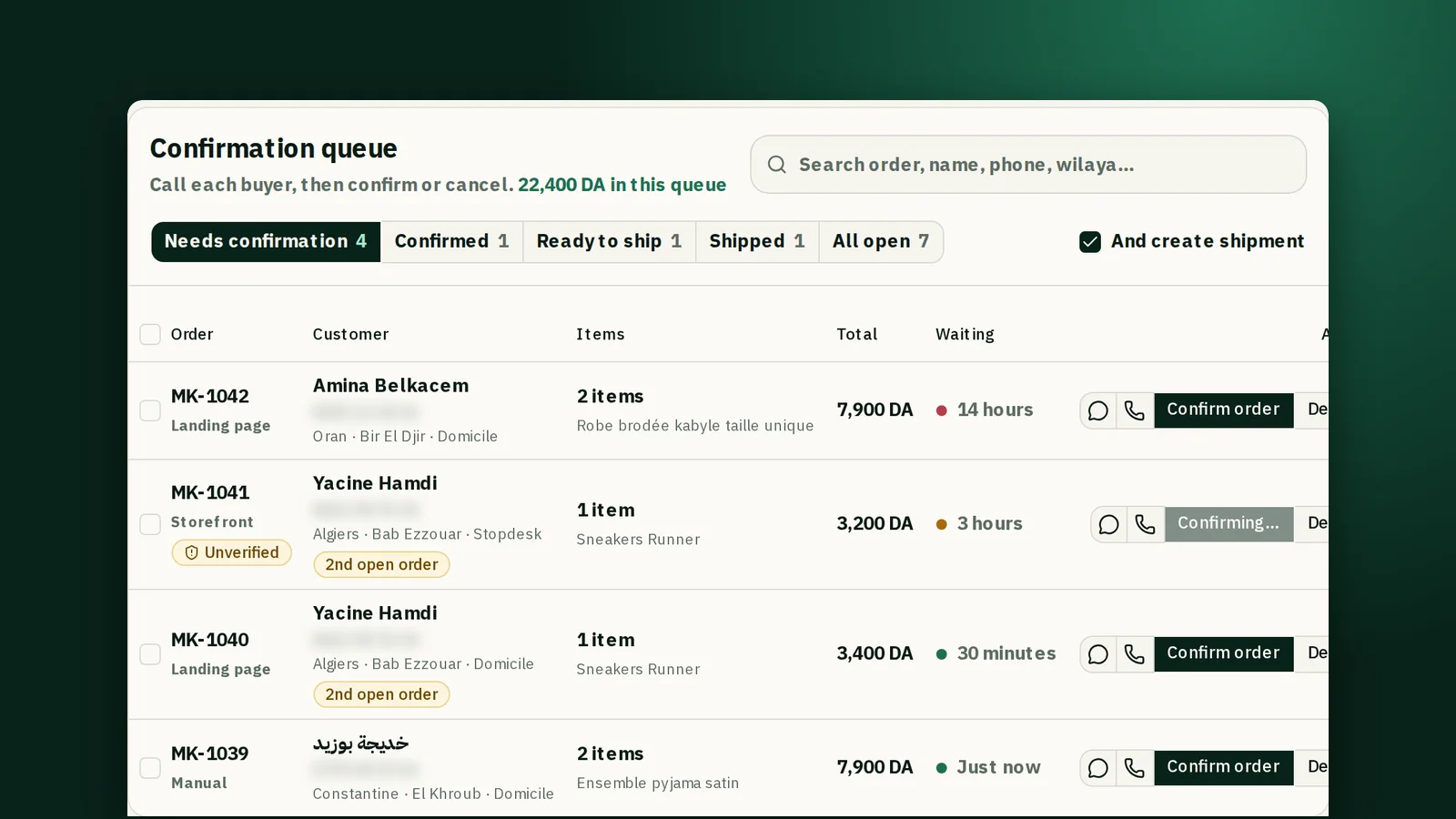
From then on, an order Turnstile could not check carries an Unverified label in your orders. Call that buyer before you ship. If every new order shows the label, check the store address you added in Cloudflare.
Keep reading

Ready to start?
Create your store, add your products, and take your first order today.
Start 7 days free